
Microsoft Copilot is an AI assistant built right into Windows and Microsoft 365. It can help with writing, summarising, and managing tasks so you get more done without jumping between apps. Here’s everything you need to know.


AI assistants are everywhere these days, but Copilot is different. It lives in the apps you already use, such as Word, Excel, and Outlook. That means you can get AI help while working or creating without leaving your workflow. In this guide, we’ll break down the versions, what they do, and whether they’re worth having on your PC.
Your Guide to Microsoft Copilot Key Takeaways
- Microsoft is an LLM-based AI model integrated directly into Microsoft software.
- Copilot is available as part of Microsoft 365 alongside Windows 11.
- Some laptops are optimised for Copilot and come with it pre-installed.
- To open Copilot on Windows 11, you can utilise the Windows + C shortcut.
- Within Microsoft 365, the Copilot button is located on the ribbon or as a standalone button in the bottom right of your screen.
- Copilot can be used to summarise documents, analyse figures, convert data into usable graphics, suggest replies to emails, generate slide layouts, and much more.
- AI software such as Copilot is powered by large datacentres, which are highly controversial. This is due to their significant power consumption, alongside utilising significant amounts of limited resources, such as water and RAM.
The Different Versions
There are a few ways to use Copilot:
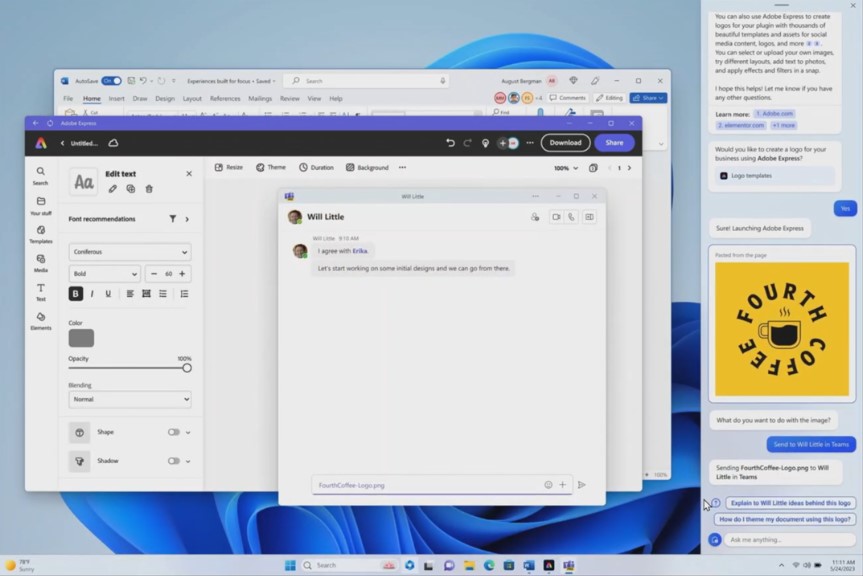
- Microsoft 365 Copilot: Works in Word, Excel, PowerPoint, Outlook, and Teams. It can draft text, make charts, summarise emails, or even turn your notes into a slide deck.
- Windows Copilot: Lives on your desktop in Windows 11. You can ask it to open apps, change settings, or give quick summaries of onscreen content without leaving the desktop.
- Copilot on Laptops: Some laptops come with Copilot built in and optimised for a faster, smoother experience right out of the box. That means faster responses and easier access straight from the taskbar.
How to Get Started with Copilot
Getting started is simple. First, make sure your PC is running the latest version of Windows 11, as Copilot is built directly into the operating system. You’ll find the Copilot icon on the taskbar or by pressing Windows + C to open it instantly.
If you use Microsoft 365, Copilot is also integrated into apps like Word, Excel, and Outlook. Just look for the Copilot button in the ribbon. From there, type a natural prompt like “Summarise this document” or “Create a chart from this data” and watch it work.
Copilot vs ChatGPT
At first glance, Copilot and ChatGPT might seem like the same thing, but they serve slightly different purposes. ChatGPT is a standalone AI chatbot that’s great for open-ended conversations, brainstorming ideas, or answering questions on almost any topic. You access it through your browser or app, and it isn’t tied to your PC’s settings or software.
Copilot, on the other hand, is built directly into Windows and Microsoft 365. It’s designed to work alongside your everyday tools, pulling in context from the apps and files you’re using. This makes it especially useful for productivity, like drafting documents, analysing spreadsheets, or navigating Windows without constantly switching tabs.
TL;DR – Think of ChatGPT as a flexible generalist and Copilot as a focused assistant that lives inside your PC. Both are powerful, but they shine in different scenarios.
What Makes Copilot Cool
Copilot is powered by advanced AI and large language models, which means it doesn’t just follow instructions, it understands context. It’s built to save time, boost productivity, and make working across Microsoft 365 feel a lot smoother. Instead of juggling tasks and constantly switching between apps, Copilot sits inside the tools you already use and helps you get more done.
Here’s some of what it can do:
- Word: Draft full documents from a quick prompt, rewrite sections for clarity, or polish up your wording in seconds.
- Excel: Turn raw data into clear graphs, spot patterns, and uncover trends automatically, without needing complex formulas.
- Outlook: Summarise long email threads, pick out key information, and suggest quick replies to keep your inbox under control.
- PowerPoint: Generate slide layouts, suggest content ideas, and help structure presentations so you can focus on delivery instead of formatting.
- Windows: Get context-aware help and smart shortcuts without leaving the task at hand, whether you’re working or multitasking.
The best part is how seamlessly it fits into your daily routine. Copilot feels less like another tool and more like a digital assistant that understands what you’re doing and steps in at the right time. It’s clever, fast, and genuinely useful once you get into the habit of using it.
What Makes Copilot Not So Cool
AI like Copilot is clever tech that’s changing how we work and create. It can take on time-consuming tasks, spark new ideas, and help you stay organised across apps. However, the energy use behind these tools is currently significant, with research suggesting AI consumption could be almost half of total worldwide datacentre power consumption by the end of 2025. The good news is that the tech industry is taking this seriously. Companies are investing in more efficient hardware, renewable energy, and smarter cooling systems to bring those numbers down. As AI tools become more streamlined, the environmental impact per task is expected to shrink, making Copilot and similar services more sustainable in the long run.

So, you’ve tried out Windows Copilot, and it’s not quite your thing. Whether it feels intrusive or you prefer a hands-on approach, we’ve got you covered. In this article, we’ll show you how to disable Windows Copilot.
Copilot in a Nutshell
Copilot can save time, boost productivity, and make everyday tasks easier by working directly in the apps you already use. It can help you write, organise, and create faster, making it a real asset for work or study. At the same time, it’s worth remembering that AI uses energy and can encourage over-reliance, so it’s best used thoughtfully. Overall, Copilot gives you a powerful, built-in assistant that makes your PC smarter from day one.
Looking for an AI Laptop?
If you want the smoothest Copilot experience, some laptops come optimised for it. Built-in integration means faster responses, better performance, and easy access right from the taskbar. Choosing a laptop with Copilot support ensures you get the most out of the AI from day one. Whether you’re working, creating, or gaming, it’s the easiest way to have AI built into your workflow without extra setup.

ASUS Vivobook 14 16GB 14″ WUXGA 512GB Intel Core Ultra 5 325 Laptop
LAP-ASU-09481
£699.95 GBP
(incl. VAT)
FREE SHIPPING
in stock
ADD TO BASKET
MSI Crosshair 16 Max HX NVIDIA 5070 16GB 16 QHD+ 165Hz Intel Core Ultra 9 290HX Plus Gaming Laptop
LAP-MSI-09343
£2249.99 GBP
(incl. VAT)
FREE SHIPPING
in stock
ADD TO BASKET
ASUS ProArt P16 NVIDIA RTX 5090 64GB 16 WQUXGA OLED 120Hz AMD Ryzen AI 9 HX 370 Laptop
LAP-ASU-09365
£4799.99 GBP £ 4399.99 GBP
-8.33%(incl. VAT)
FREE SHIPPING
in stock
ADD TO BASKETYour Guide to Microsoft Copilot FAQ
Where can I find Microsoft Copilot?
Microsoft Copilot is integrated directly into the Windows 11 operating system, alongside Microsoft 365 software.
How do I open Copilot?
To open a Copilot thread in Windows, you can utilise the Windows + C shortcut to open a window from your desktop. Meanwhile, in a Microsoft 365 app, such as Word or Excel, you can find Copilot by pressing the button either located on the ribbon or in the bottom right corner of your document.
What programs does Copilot work with?
Copilot is designed to support a wide range of Microsoft software, including:
- Windows 11
- Word
- Excel
- Paint
- PowerPoint
- OneNote
- Outlook
- Edge
- SharePoint
- OneDrive
What can I use Copilot for?
There are a wide range of applications that Copilot can be used for, such as drafting a document in Word from a prompt, analysing figures in Excel to spot trends, summarising long email threads in Outlook, generating layouts for slides in PowerPoint, and much more.
Can I turn off Copilot if I don’t wish to use it?
It is more than possible to disable Copilot if you feel you don’t need it. In fact, we have a dedicated blog post detailing the steps required to do so, located here.
Looking For More Guides?


Copilot – Slay or Nay?
We’ve covered the pros, the cons, and everything in between. What do we think, chat? Is Copilot something you’re ready to use right now, or are you holding off on AI?
- 7 min read


Overclockers UK
Author
OcUK has been the home for PC gaming enthusiasts since 2012. The blog is chock full of hardware news, upcoming games, and handy guides. As such, the Overclockers UK Blog team is dedicated to bringing you top-quality content daily.
Read More >>