
Upgrading your gaming PC with a new GPU is a fantastic feeling. Just think of all those games you can play with improved graphics and frame rates. The only problem is, which GPU output should you plug your cable into?


In this article, we’re going to break down all you need to know about GPU outputs. From the connectors they feature to their capabilities. With this knowledge, you’ll soon be diving into those exciting titles you’ve been itching to try out.
Where to Connect Your Display?
Before we explore the connectors you can expect to find, we must first make sure you’re hooking your display up to the correct output.
The classic mistake everyone makes the first time they set up their shiny new PC is to plug their monitor into the motherboard and not the GPU. This port outputs a video signal from your CPU, which offers much lower performance than your dedicated GPU. As such, your games will not perform as well as you were expecting. That is, if your CPU even comes with integrated graphics at all, so you could end up with just a blank screen.
To avoid this, you need to use the right connector. If you look at the back of your PC, you’ll probably find a vertically aligned connector higher up. This is your motherboard output. Further down, you’ll find a collection of horizontal ports. You’ll want to use one of these, as they’re from your graphics card.

The Outputs
Now that we’ve covered where you need to plug your cable in, let’s move on to the exciting part; looking at the GPU outputs you’ll likely find on your shiny graphics card.
In general, there are four connectors you’re likely to encounter: HDMI, DisplayPort (DP), DVI, and VGA. Most modern graphics cards will likely just have HDMI and DP connectors. Some entry-level and legacy models, however, may feature DVI or VGA alongside them.
VGA
This is by far the oldest connector. First introduced back in 1987, VGA transmits data by sending analog voltage levels through a 15-pin connector. These voltages are interpreted by your display (typically a CRT or early LCD monitor) as RGB colours and horizontal and vertical sync signals, allowing it to render the image.
As VGA is an analog technology, it features some significant drawbacks compared to modern video outputs. The highest resolution you can achieve with a VGA connection is a 1920 x 1200, with a maximum refresh rate of 60Hz. Plus, VGA only supports video signals, so you will need a separate connection for an audio output. The signal can also degrade if your cable is too long or there is significant interference surrounding it.

DVI
The second-oldest connector, DVI was first introduced in 1999. DVI (Digital Visual Interface), as the name suggests, utilised a digital signal but can also be configured to carry an analog signal. Thanks to this, DVI was not as susceptible to electrical noise and signal degradation as VGA.

In fact, DVI was available in three different variants, DVI-D (Digital), DVI-A (Analog), and DVI-I (Integrated). A DVI connector generally features 24 pins, with four additional optional pins to support analog signals. As you can see in the diagram, what layout the connector had is dependent on what type of cable it was.
Although more advanced than VGA, DVI still has some limitations. The highest resolution supported is 2560 x 1600, with a refresh rate of 60Hz. Furthermore, it is also limited to just video signals, meaning you still need to utilise a separate cable for your audio.
HDMI
High-Definition Multimedia Interface, or HDMI, is the most common type of video connector currently available. You can find the connectors for this output on devices such as PCs, laptops, TVs, consoles, and even tablets.
First introduced in 2002 by a group of companies including Sony, Toshiba, and Philips, HDMI is a fully digital technology. It uses a 19-pin trapezoid connector, which can vary in size depending on the type. In the image below you can see the three most common; from right to left they are Type A (Standard HDMI), Type C (Mini HDMI), and Type D (Micro HDMI).

Since its first release, HDMI has had several revisions which have improved performance. Below is a table that lists the HDMI versions and their capabilities:
| HDMI Version | 1080p | 1440p | 4K | 8K |
|---|---|---|---|---|
| 1.0-1.2 | Up to 120Hz | Limited support for 60Hz | N/A | N/A |
| 1.3-1.4 | Up to 144Hz | Up to 75Hz | Limited support for 30Hz | N/A |
| 2.0 | Up to 240Hz | Up to 144Hz | 60Hz | N/A |
| 2.1 | 240Hz+ | 165Hz+ | 120Hz | 60Hz* |
Alongside a video signal, HDMI supports audio outputs. As such, you only need a single cable for both sound and images, making it ideal for TVs or monitors with integrated speakers. Plus, support for surround sound audio means HDMI is also an excellent choice for home theatre set-ups.
DisplayPort (DP)
The latest video output to be released, DisplayPort was first introduced in 2006 by the Video Electronics Standards Association (VESA). It has been widely utilised in the PC sector, as DP is an open standard, unlike HDMI, which manufacturers must pay a royalty on to use.
DisplayPort also utilises a digital signal, which can carry both visual and audio components. Much like HDMI, this means you need only a single cable to connect your PC to a monitor with integrated speakers. Plus, as DisplayPort features Multi-Stream Transport (MST) technology, you can daisy-chain multiple devices together using a single output on your computer, including monitors and audio equipment.
There are two main connectors for DisplayPort, the standard and mini versions. Both utilise 20 pins, with the standard connector being slightly larger and featuring a rectangular design with one side bevelled. Meanwhile, Mini DisplayPort is smaller and uses a square shape with two corners bevelled. With later revisions of DisplayPort, USB-C integration was introduced, meaning a DP signal can be transmitted along a compatible USB Type-C cable.

Like HDMI, there have been multiple revisions to DP to add extra functionality and improve performance over the years. In the table below, you’ll find a list of the supported resolutions and frame rates for each version of DisplayPort:
| DP Version | 1080p | 1440p | 4K | 8K | 16K |
|---|---|---|---|---|---|
| 1.1 | 240Hz | 144Hz | Limited support for 30Hz | N/A | N/A |
| 1.2 | 240Hz | 165Hz | 60Hz | N/A | N/A |
| 1.3 | 360Hz | 240Hz | 120Hz | Limited support for 30Hz | N/A |
| 1.4 | 360Hz | 240Hz | 144Hz | 60Hz* | N/A |
| 2.0 | 500Hz | 360Hz | 240Hz | 85Hz | 60Hz* |
| 2.1 | 500Hz+ | 360Hz+ | 204Hz+ | 240Hz* | 60Hz* |
What Connectors Will My GPU Have?
If you buy a modern graphics card from AMD, NVIDIA, or Intel, you can expect to find a similar layout of display outputs. These will generally be a single HDMI port and three DP connectors.
What may change is what version they are equipped with. Below, we’ve listed several generations of graphics cards from each manufacturer and listed what version of HDMI and DP they support.
| GPU | HDMI | DP |
|---|---|---|
| NVIDIA RTX 30 Series | HDMI 2.1 | DP 1.4a |
| NVIDIA RTX 40 Series | HDMI 2.1a | DP 1.4a |
| NVIDIA RTX 50 Series | HDMI 2.1b | DP 2.1b |
| AMD Radeon RX 6000 | HDMI 2.1 | DP 1.4a |
| AMD Radeon RX 7000 | HDMI 2.1a | DP 2.1 |
| AMD Radeon RX 9000 | HDMI 2.1b | DP 2.1a |
| Intel ARC Alchemist | HDMI 2.1 | DP 2.0 |
| Intel ARC Battlemage | HDMI 2.1a | DP 2.1 |
Find Your Perfect Hardware
Armed with all this knowledge, now is the right time to find your perfect upgrades. We’ve listed several graphics cards, displays, and even cables that will deliver phenomenal performance in all your favourite games. If you still can’t find what you want, simply click on one of the buttons below to explore Overclockers UK’s full range of hardware.

XFX Mercury 9060 XT Gaming OC White Triple Fan 16GB GDDR6 Graphics Card
GRA-XFX-05430
£419.99
(incl. VAT)
FREE SHIPPING
out of stock
ADD TO BASKET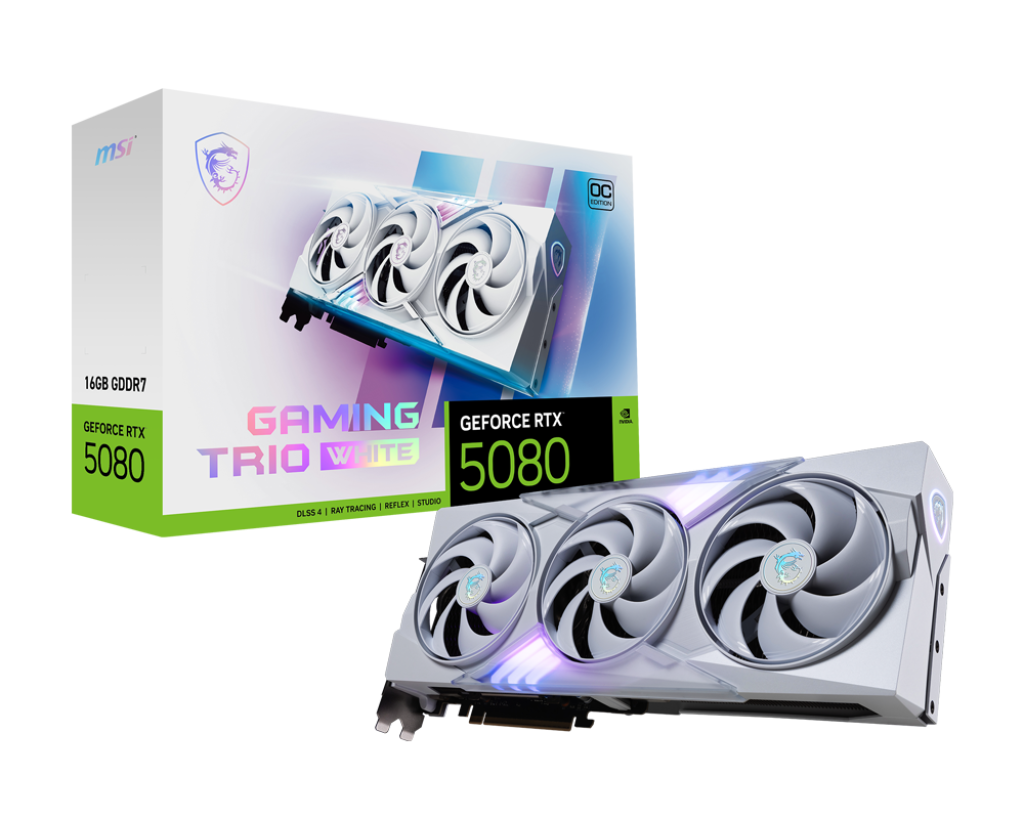
MSI GeForce RTX 5080 Gaming Trio OC White 16GB GDDR7 PCI-Express Graphics Card
GRA-MSI-04043
£1499.99
(incl. VAT)
FREE SHIPPING
out of stock
ADD TO BASKET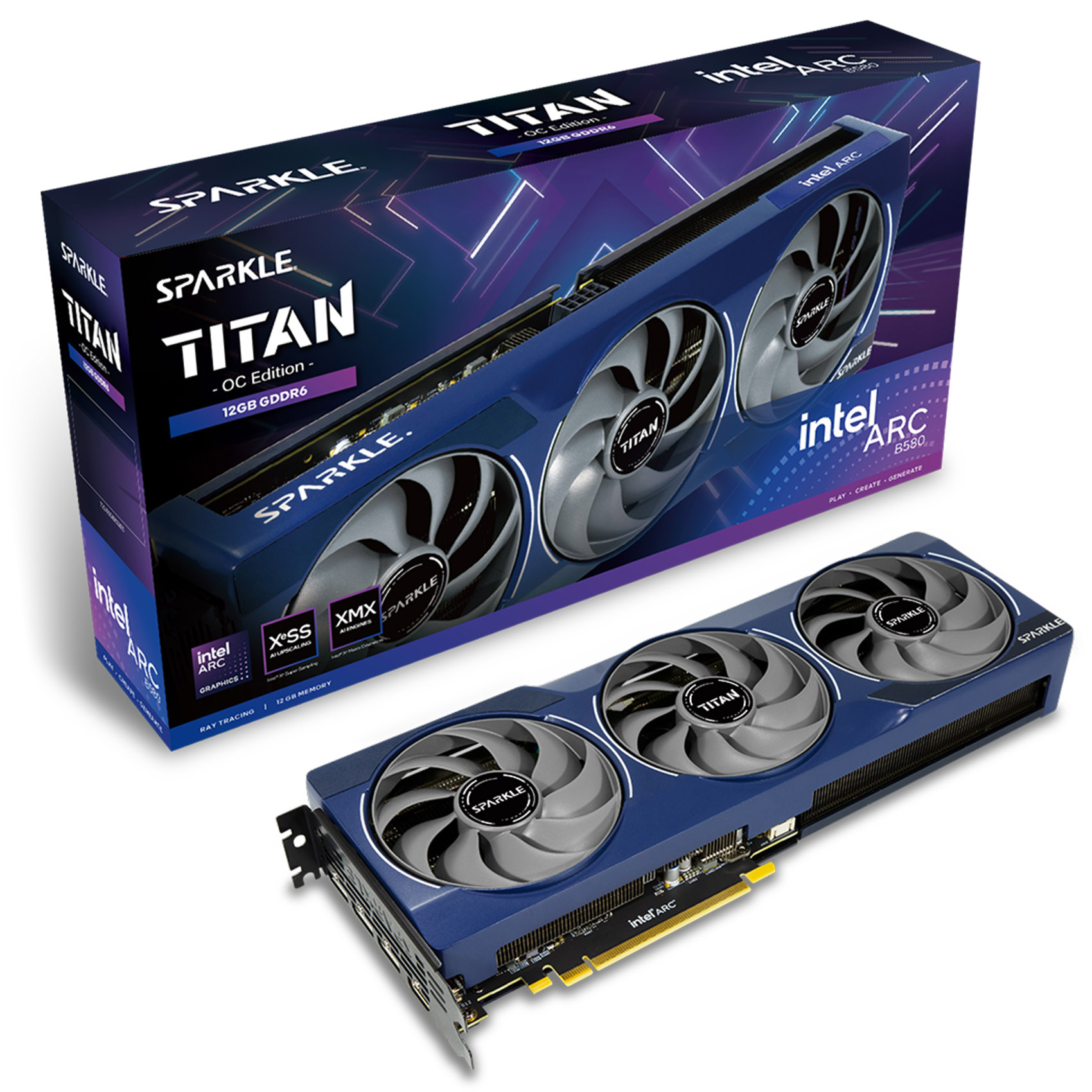
Sparkle Intel ARC B580 TITAN OC 12GB GDDR6 Graphics Card
GRA-SPK-03779
£389.99
(incl. VAT)
FREE SHIPPING
in stock
ADD TO BASKET
LG 27″ Ultragear 27GS60F-B 1920×1080 IPS 180Hz 1ms FreeSync/G-Sync Widescreen Gaming Monitor
MON-LGC-02149
£159.95 £ 124.99
-21.86%(incl. VAT)
FREE SHIPPING
in stock
ADD TO BASKET
Gigabyte 32″ FO32U2P 3840×2160 OLED 240Hz 0.03ms FreeSync Widescreen Gaming Monitor
MON-GIG-02269
£1048.99
(incl. VAT)
FREE SHIPPING
in stock
ADD TO BASKET
OcUK Value 3m Male – Male Display Port Monitor Cable (CDLDP-003)
CB-044-OK
£5.99
(incl. VAT)
FREE SHIPPING
in stock
ADD TO BASKET
OcUK Value 3m Rotate And Swivel HDMI V2.0 Braided Cable (99HD4-SW03)
CB-135-OK
£5.45
(incl. VAT)
FREE SHIPPING
in stock
ADD TO BASKET
OcUK Value 5m DVI Male – Male Monitor Cable
CB-075-OK
£7.99
(incl. VAT)
FREE SHIPPING
in stock
ADD TO BASKETDiscover More About GPUs and Displays


Share Your Experiences
Are you a seasoned veteran when it comes to display outputs? Do you have any tips to help beginners navigate the world of these connectors? Why not share them in the comment section below!
- 8 min read


Simon Procter
Author
Having been a gaming nut for longer than he cares to think, Simon landed his dream job over a year ago at Overclockers UK. Since then, he has written many product pages and category texts. He even gets released from the basement to write the odd cheeky blog post. When not working, you can often find him entrenched in World of Warcraft, visiting friends to have his butt whooped in a board game, or with his nose buried in a book.
Read More >>