
Seasoned gamers know that their favourite hobby isn’t always easy. From skill barriers to tech hiccoughs, there can sometimes be a series of common issues holding back our gaming.


Whether you’ve been PC gaming for days or decades, we’ve pinpointed a few quibbles that may be putting a skill ceiling over your head. And, better yet, we’re focusing on the solutions to resolving them down below!
Are PC Settings Holding Me Back?
To guarantee your in-game skills are never subdued, we recommend optimising your settings!
There are a few things you can tweak to improve how well your games run. We’ll break them down one by one.
Can Optimising Windows Improve Gaming?
Windows 11 isn’t just a home screen with some apps on it. The OS is a foundation for all your PC programming, gaming included!
Optimisation pathways for Windows 11 that may directly help you improve your gaming skills include:
- Game Mode: Start > Settings > Gaming > Game Mode. Game Mode allows Windows 11 to suppress background applications and devote more resources to games you’re actively playing.
- Best Performance Mode: Start > Type adjust the appearance and performance of Windows > Navigate to Performance Options window > Visual Effects > Adjust for best performance. This ensures the best synergy possible between performance and graphics.
- Enabling Hardware-Accelerated GPU Scheduling: Start > Settings > System > Display > Graphics > Advanced Graphics settings > Hardware-Accelerated GPU scheduling. This may render in-game environments faster and keep latency to a minimum.
- Sticky Keys: Start > Settings > Accessibility > Keyboard > Sticky Keys on/off. If you press SHIFT five times in quick succession, this function allows you to more easily press multiple keys at once, as there’s a delay on the combo press. However, activating it will minimise any games you’re playing, so if you don’t need this function, we advise turning it off!
These tweaks are good places to start when optimising your gameplay. When there are fewer technical hiccoughs, your learning journey is undisturbed, and you’re free to focus on smooth moment-to-moment gameplay.

If you want to know everything there is to know about optimising Windows 11 for gaming, check out our dedicated article!
Why Should I Optimise Monitor Settings?
Whatever your skill level, your monitor must be set up correctly, as this not only creates the clearest image on your screen, but it also helps to reduce neck and eye strain!
To ensure your monitor is ergonomically optimised, you should first ensure the top is level or slightly below your eyeline. You can fine-tune that height adjustment with a monitor arm, riser or customisable stand. Ideally, you’ll want the monitor positioned at the back of your desk, too. If you’re utilising a multi-monitor setup, arrange them closer to one another to create the illusion of one long seamless display. Once you’re settled and seeing clearly, you’ll be a triumph on the battlefield.
Software optimisation is next on the agenda to minimise motion blur and stuttering. The pathway you’ll need to adjust your monitor’s refresh rate is:
Start button > Settings > System > Display > Related Settings > Advanced Display > Choose a refresh rate.
As you navigate this pathway, you may also encounter Scale & Layout > Display Resolution. You don’t need to touch this when trying to improve your gaming performance, as resolutions are adjusted per-game title in their respective settings. Speaking of which…
Which In-Game Settings Should I Optimise?
It’s important to have the right mentality when optimising your game settings. Remember, we’re optimising for performance, rather than in-game aesthetics.
To that end, optimising your in-game settings is more about reducing strain where it’s not needed in-game. That way, your frames are steady, your immersion never falters, and your reaction speeds are as quick as can be. Your skills won’t just develop, they’ll shine!
Most in-game optimisation techniques spawn from your title’s main menu. There should be a clearly labelled settings tab, where you can subsequently adjust your game’s resolution, mouse sensitivity, frame rate cap, and more. When you make changes, the game may offer a preview, where you can choose to keep your changes or revert them. So, be sure to experiment until you’re happy!
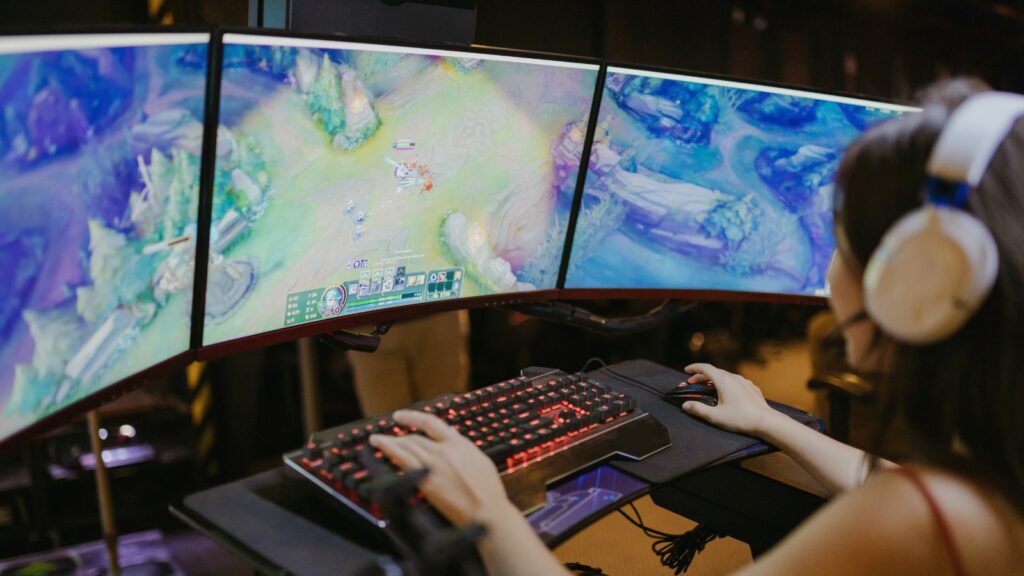
How Can I Improve My Keyboard Control?
Rich, vibrant gaming worlds are at your fingertips! Or, at least, the keys on your keyboard are, which you use to navigate and dominate these digital spaces.
While gaming on your keyboard might seem pretty straightforward, there are a few things you can do to improve your skills on it.
Reassign Your Keys
Changing which keys perform certain commands can be highly advantageous. For example, you can cluster your most-used keys nearer to each other on the keyboard for easier reach, resulting in faster in-game actions.
What’s more, the SHIFT key is usually the default key for sprinting in many games. However, if you press SHIFT five times in quick succession, you can accidentally activate Sticky Keys, which will minimise your game even in the middle of the action. If you do need this function, reassigning the sprint action to another key is a good idea!
Upgrade Your Keyboard
Most experienced PC gamers use mechanical keyboards, as they register key presses faster. They also generally feel more tactile and satisfying to use!
So, if you’re using a standard membrane keyboard, replacing it with a mechanical keyboard may be in order. You could improve your gaming skills, as they can help you be first on the draw in any competitive shooter or keep pace with demanding quick time events.
Plus, you can refine your keyboard control further! If your mechanical keyboard is hot-swappable, you may want to change the switches you’re using to fine-tune the actuation force and pre-travel. In other words, alter how much pressure you need to apply to your keys for the input to register!

Glorious Mako Mechanical Keyboard Switches 36pcs – Ultralight (GLO-KB-ACC-SWT-MA
PER-GPC-02955
£27.95 GBP £ 9.49 GBP
-66.05%(incl. VAT)
FREE SHIPPING
in stock
ADD TO BASKETUtilise Macros
Keyboard macros are the bread and butter of proficient gamers. They work like shortcuts, automating certain avatar movements and actions. One key press can execute commands that would otherwise take many, which can either save you precious time or help you focus your attention elsewhere in the game.

If you want to know how to map your macros, we’ve covered the topic in great detail over here. Check it out!
How Can I Improve My Aiming In-Game?
Aiming isn’t just for fast-paced shooters. After all, even turn-based RPGs demand careful clicks and refined mouse control.
Sometimes, no matter how much or little you move your mouse, it can feel like your cursor isn’t quite where it needs to be. If something does feel a little off, it can cost you in-game, so it’s worth investigating!
That might mean adjusting your mouse DPI settings per title, as that can affect how much swiping is needed to move your cursor. For quick movements, a high DPI will serve you well, whereas you might favour a lower DPI in games where you need to take your time in lining up a shot. DPI is not quite the same as sensitivity, so it may be worth tinkering with the latter settings as well to strike the perfect balance.
Of course, what is a mouse without a sufficient mat? To ensure your cursor glides beautifully across your screen, we advise that you secure one of the best gaming surfaces on the market.

Need more tips on how to improve your mouse aim? More helpful strategies are just a click away over here!

Razer Viper V3 Pro – White Gaming Mouse
GAM-RZR-03668
£159.95 GBP
(incl. VAT)
FREE SHIPPING
in stock
ADD TO BASKETDoes a Headset Really Help Gameplay?
Never underestimate the power of a good headset. Quite simply, they can be game changers.
The most obvious benefit is comms, allowing you to coordinate with your squad in online games for refined tactics and strategic gameplay. If you can keep your temper cool, mute the trolls, and have constructive chatter with your team, your skills in games will undoubtedly improve.
Moreover, headsets provide crystal clear audio. You’ll hear every small disturbance your enemies cause on the field, whether it’s footsteps or their rustling of foliage. Nothing escapes your notice! Many also have directional audio, so you’ll be able to pinpoint where the quietest murmur of trouble is coming from.
Is My PC Optimised for Gaming?
Many gamers try to make do with PC builds or laptops that don’t pack hardware optimised for gaming. While it’s an admirable effort, and we all start somewhere, sooner or later, the big leap from zero to hero must be made!
Regardless of your skill level, personal budget, gameplay style, or favourite genre of games, there is a pre-built PC for you. Every component is carefully considered by a highly experienced technician and rigorously tested through an extensive benchmarking process involving the most demanding gaming titles.
Put simply, all the optimisation is done for you. It guarantees results for better gaming, teeing you up to run wild with enhancing your skill set.

OcUK Gaming Fluorite – Intel Core Ultra 5 250KF RTX 5070 Pre-Built Gaming PC
FS-PB04-EP
£1999.99 GBP
(incl. VAT)
FREE SHIPPING
Pre order
ADD TO BASKET
OcUK Gaming Ultraviolet – GeForce RTX 5090 Pre-Built Gaming PC
FS-1UV-EP
£7999.99 GBP
(incl. VAT)
FREE SHIPPING
in stock
ADD TO BASKET
OcUK Gaming Jade – GeForce RTX 5060 Ti Pre-Built Gaming PC
FS-1DJ-EP
£1849.99 GBP
(incl. VAT)
FREE SHIPPING
in stock
ADD TO BASKETNeed a Gaming PC to Match Your Skill Level?
We’re purveyors of many high-end gaming PCs and laptops, here at Overclockers UK. If you’re curious about upgrading, take a look at our stock!

OcUK Gaming Mach 3.2 – Ryzen 7500X3D RTX 5070 Pre-Built Gaming PC
FS-PB07-EP
£1949.99 GBP
(incl. VAT)
FREE SHIPPING
in stock
ADD TO BASKET
OcUK Tech Labs Intel Core Ultra (Arrow Lake) Midi Gaming Configurator
SYS-OCT-00045
£1699.99 GBP
(incl. VAT)
FREE SHIPPING
in stock
ADD TO BASKET
OcUK Gaming Harrier – AMD Ryzen 7 7700X, Radeon RX 9070 Gaming PC
FS-1EU-OG
£2099.99 GBP
(incl. VAT)
FREE SHIPPING
in stock
ADD TO BASKET
MSI Pulse 16 AI NVIDIA RTX 4060 16GB 16″ QHD+ 165Hz Intel Core Ultra 7 155H Gaming Laptop
LAP-MSI-06428
£1599.95 GBP
(incl. VAT)
FREE SHIPPING
in stock
ADD TO BASKETMore Gaming Content


Ready to Improve Your Gaming?
Do you have any other tips to enhance the skills of the gaming community? Share them in the comments below!
- 10 min read


George Moss
Author
George has long enjoyed writing and PC gaming, so working for Overclockers is very exciting! When he's not at the computer, he can be found adventuring with his apricot cockapoo, reading books on seabirds, or being a liability for his Dungeons and Dragons party.
Read More >>