
Recently purchased a shiny new PSU upgrade but don’t know how to install it? If so, this is the blog post for you as we’ve detailed step-by-step how to replace your power supply.


Why Should I Replace My PSU?
There are two main reasons why you may need to replace your power supply. This includes:
- You’ve replaced one or more components that require more power
- The PSU itself has become faulty or damaged causing a negative impact on your performance.
How to Tell If You Need a New PSU
A faulty PSU will typically show the same signs. This ranges from unexpected shutdowns, not turning on altogether, unwanted crashing or freezing, and taking longer for your PC to start up and shut down.

All these things point to your PSU being defective and if you are experiencing any of these things, we recommend you test your power supply to see if it’s functioning correctly. If it’s not – it’s time for a replacement!
Don’t know how to test your power supply? We’ve broken down everything you need to know in our handy guide.

How to Replace PSU – A Step-By-Step Guide
Replacing your PSU is simple. Before you do anything, ensure that your PC is switched off at the back and unplugged from any mains source.
You’ll need to start by removing your existing power supply. Unscrew the screws on your casing and open the back panel on your chassis. Carefully disconnect the power cables from your motherboard, SSDs, HDDs, and graphics card by gently pushing down on the small hooks attached to each plug.
Top Tip for Beginners – if you don’t know which cables go where take a photo on your smartphone before you start unplugging so you can refer back to this later on!
After this, you can begin installing your new power supply.
The process is virtually the same but done in reverse order. Carefully tightly screw in your power supply within your case and connect it to your motherboard and other components, making sure you attach the correct cables in the right sockets. You may also want to do some on-the-go cable management here to help avoid any unnecessary cable clutter at the back of your case.

Don’t know how to successfully cable manage your PC? Take a look at our top tips!
After this, plug your PC back into the mains and flip the power switch on the back to on. Test your new PSU is working by turning your computer on. If it does, you can go ahead and screw your case’s back panel on. If it doesn’t, you may need to do some additional testing such as checking the connectors are plugged in correctly and that there’s no damage to the cables.
On the Hunt for an Upgrade?
If you suspect your PSU is faulty and you need a replacement, you can find everything you need at Overclockers UK. We stock a premium range of power supplies, sporting different wattages, form factors, and 80 PLUS certificates, meaning you are sure to find the exact PSU for your set-up.
We’ve got two of our top picks highlighted below, but you can also browse our entire selection by clicking the button below.
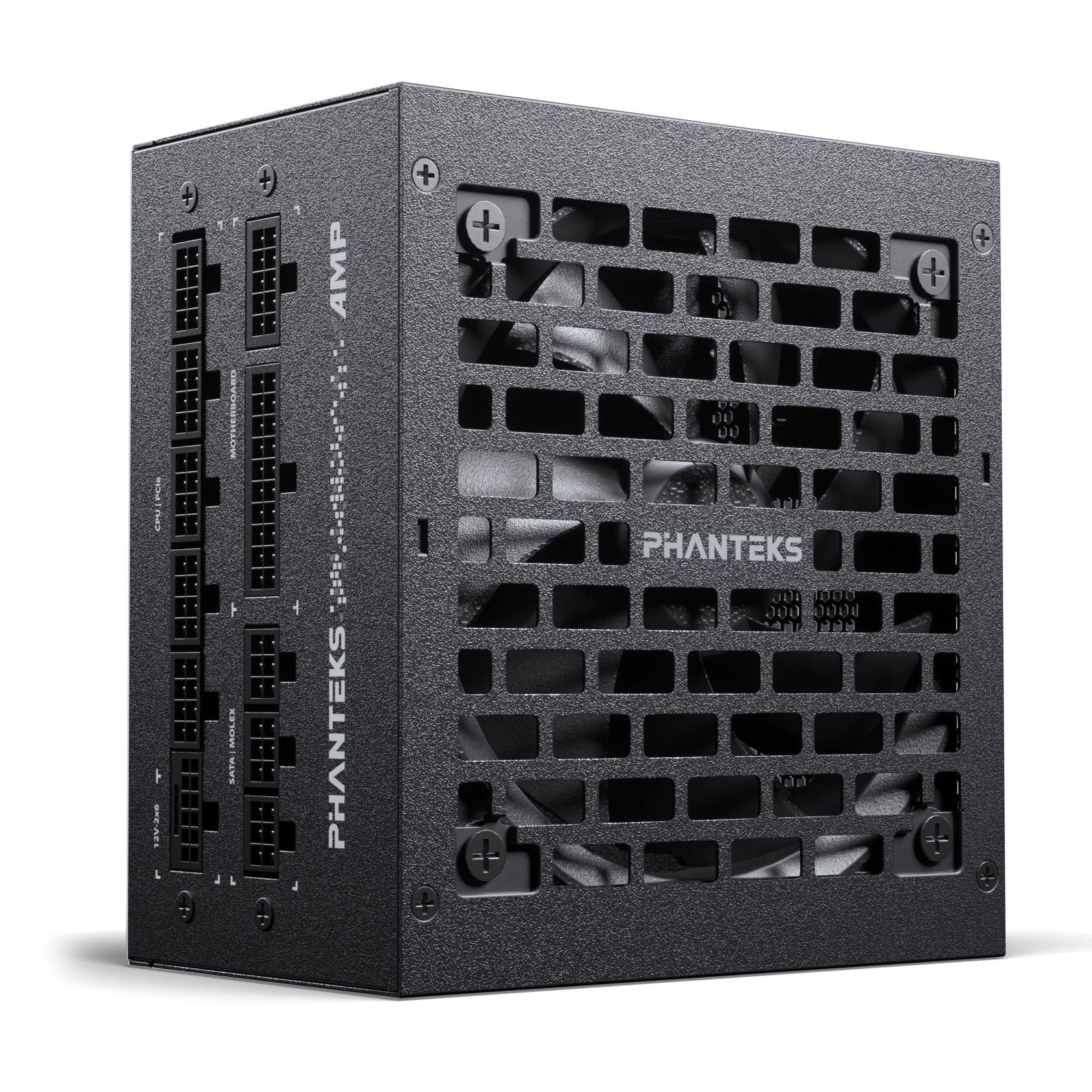
Phanteks AMP GH 850W ATX 3.1 PCIe 5.1 80 Plus Gold Modular Power Supply
POW-PHK-02519
£104.99 £ 99.95
-4.8%(incl. VAT)
FREE SHIPPING
in stock
ADD TO BASKET
Lian Li EDGE 1000W ATX 3.1 PCIe 5.1 80 Plus Platinum Modular Power Supply
POW-LIA-02360
£159.95
(incl. VAT)
FREE SHIPPING
in stock
ADD TO BASKETLearn More About Your Power Supply

Share Your Top Tips!
Do you have any top tips on how to successfully replace a PSU? Help out a beginner builder by leaving them in the comments below!
- 3 min read

Ruth Rowley
Author
Ruth has been with Overclockers UK for over four years and has gone on to write about everything ranging from in-depth hardware guides to monthly game releases.
Outside of writing blog posts, she can be found wrapped in a blanket with her black cat, engrossed in a book or playing life-simulation games such as The Sims, Stardew Valley, and Animal Crossing.
Read More >>