
Struggling to decide if your PC is getting too hot? Or perhaps you don’t know what the ideal temperature for a processor is. Whatever the case – this blog post has been designed to answer every question you’ve ever had about CPU temperatures.


We’ll be showcasing why CPU temperature is important, explain how to find out what your temp is, uncover the best temperature for your workload, and explore some top tips for helping your PC stay cool.
What Temperature Should My CPU Key Takeaways
- The temperature of your CPU will fluctuate depending on the workload it is presently under. Processors run hot when gaming, streaming, or performing similarly demanding tasks.
- While under load, a standard CPU temperature is 60-80°C.
- Cooler CPU temperatures facilitate rapid processing and seamless multitasking.
- Temperatures exceeding 90°C are generally considered too high, unless you’re using an AMD AM5 CPU, which can safely reach TJMax at 95°C. However, prolonged high temperatures may shorten your processor’s lifespan.
- You can review your CPU’s temperature by accessing your computer’s BIOS settings or third-party monitoring software such as Core Temp and Open Hardware Monitor.
- Causes of higher-than-usual CPU temperatures may include insufficient airflow, overzealous workloads, improper cleaning, overly ambitious overclocking, and a lack of thermal paste on the CPU to facilitate sufficient heat transfer.
- An upgrade may be advisable, particularly if your spec only utilises standard air cooling. A switch to an AIO may provide noticeable improvements.
Why is CPU Temperature Important?
Excess heat can affect both the longevity of your processor and your system’s overall performance, resulting in instability such as unexpected freezes, crashes, and shutdowns. Prolonged high temperatures can shorten the lifespan of the CPU and may even affect your other components.
Keeping your processor cool enables it to continue performing at optimum temperatures, enabling you to enjoy rapid processing, seamless multitasking, and much more.
What is a Normal CPU Temperature?
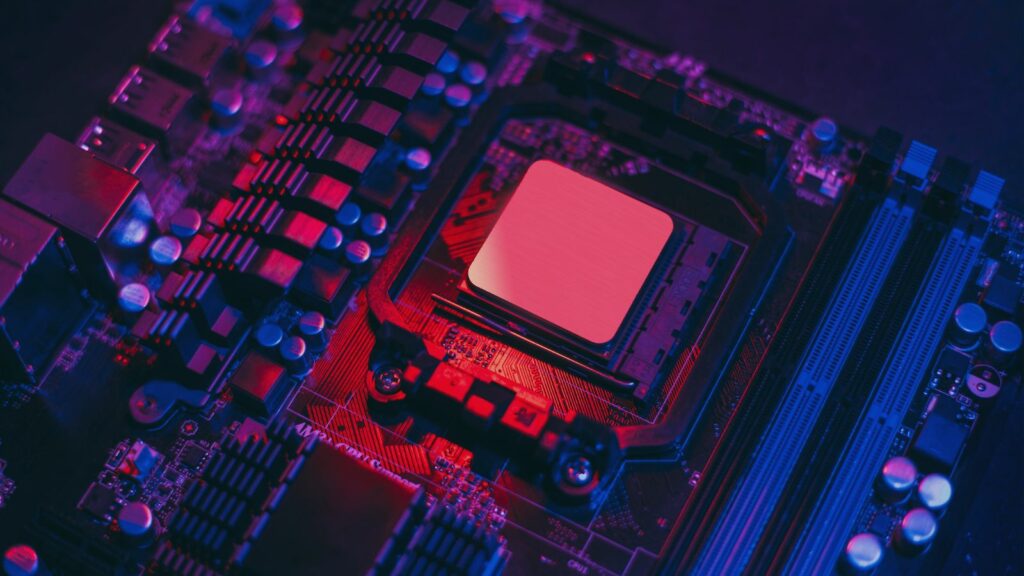
The temperature of your CPU depends on your workload and cooling solution. However, the general rule of thumb is that your processor should be anywhere between 60-80°C when it’s under load. A term you should familiarise yourself with is TJMax. It refers to the temperature a CPU can reach before it starts to throttle. Generally, anything higher than 90°C is considered too high and therefore potentially dangerous. However, there are some exceptions, as AMD AM5 CPUs are designed to safely operate at a 95°C TJMax.
Most processors will automatically begin to throttle if it reaches a high temperature which will help to bring down your CPU’s overall temp. If it’s still unable to cool down properly, your PC may suddenly blue screen or switch off altogether.
How Can I See What My CPU Temperature Is?
You can check your CPU temperature in two ways:
- Via the BIOS
- Via third-party software
Via the BIOS
- Restart your computer.
- As your PC is booting up, press the hotkey assigned to your BIOS, such as F8 or Delete.
- Once in BIOS, locate the ‘Fan Curve’ or ‘Overclocking’ section.
- Here you’ll be able to see detailed real-time information about your CPU temp.
Via Third-Party Software
- Download your chosen monitoring software such as Core Temp, Ryzen Master, Open Hardware Monitor, or HWMonitor.
- Once installed, launch your chosen software and locate your CPU from your hardware list.
- Here you should see your CPU’s current temperature, which will be displayed in either Celsius or Fahrenheit.
Want to learn more about how to check your CPU temp? Be sure to take a look at our guide.

What Temp Should My CPU Be?
Don’t know what temperature your CPU should be? The table below details the average ideal and risky temperatures for your processor depending on load.
| Idle | Low Load | Max Load | |
|---|---|---|---|
| Ideal | Less than 50°C | Less than 70°C | Less than 80°C |
| Risky | Anything higher when ideal needs to be investigated | Between 80-85°C | Between 85-90°C |
| Dangerous | – | Higher than 85°C is potentially dangerous | Higher than 90°C could be dangerous |
We’ve also broken it down further.
When Idle
When your CPU is idle, it’s experiencing minimum loads which is typically simple internet browsing or watching videos online. These tasks won’t put your CPU under any strain since they don’t require any complex processing.
The perfect temperature for an idle CPU is less than 50°C. Anything higher than this is considered dangerous, and you need to do further testing to see what’s making your processor this hot.
When Gaming
Gaming will put your CPU under strain as this will require more complicated processing, and your CPU will need to be directly communicating with both your memory and graphics card for your PC to render any visuals.

The optimum temperature for a CPU is less than 70°C. Anything between 80-85°C is risky, and you may want to invest in some extra cooling. Higher than 90°C is dangerous.
When Streaming
Live streaming seriously puts your processor under pressure. Now your CPU is having to process several multi-core applications at once, the game you’re trying to play, and the stream you are actively encoding.
As a result, the ideal temperature for a CPU when live streaming is less than 80°C. Anything between 85-90°C is considered dangerous and higher than 90°C.

What Affects My CPU Temperature?
Multiple factors can affect your CPU temperature. This includes:
- Your workload. If your CPU is experiencing heavy loads, it will add extra strain and therefore increase your temperatures.
- Airflow. Insufficient airflow can cause temperatures to increase as your CPU isn’t getting the cooling it needs. This could be that your thermal solution isn’t sufficient enough or your case lacks good quality airflow.
- Overclocking. By overclocking, you are increasing the clock rate and voltage of your processor, causing it to perform higher than intended by the manufacturer. This in turn results in increased temperatures.
- Your thermal paste. If you haven’t put enough thermal paste on your CPU, there won’t be sufficient heat transfer between the processor and cooler to keep temperatures to a minimum.
- Cleaning. If your PC isn’t regularly cleaned, a build-up of dust can soon start to infiltrate the inside of your chassis, blocking fans and even entering vital components. Both of which will harm your PC’s cooling capabilities.
How Can I Bring My CPU Temperature Down?
Thankfully, not all hope is lost! If your CPU temperature is too high, there are a few simple tricks you can do to hopefully get them back down again.
Improve Your Airflow
Increasing your airflow can help to reduce any excess temperatures as you’ll now have a consistent stream of air flowing throughout the interior of your case and fans, allowing them to dissipate heat faster and more efficiently.

Adjust Fan Speeds
You can also consider adjusting your fan speeds, especially if your processor struggles under heavy loads.
To do this, go into the BIOS or dedicated fan control software and manually adjust the fan curves to allow them to ramp up when under pressure for better airflow. You can also configure the fans to stop spinning (or spin very slowly) when idle, meaning you can still enjoy a whisper-quiet operation.
Add More Thermal Paste
Adding more or even repasting your CPU can help to improve heat transfer between your processor and cooler, facilitating better dissipation for improved temperatures.
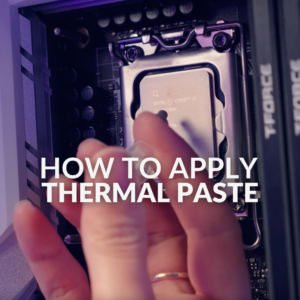
Don’t know how to apply thermal paste? Here’s what you need to know.
Check Your CPU Cooler
We recommend that you also check the base of your CPU cooler and ensure that the protective plastic has been removed. Mistakes can happen and if this plastic has been kept on it will block effective heat transfer between the processor and cooler, causing temperatures to increase.
Upgrade Your Cooling
If your budget allows for it, you can try upgrading your cooling configuration. Opting for an AiO over air cooling will notably help those who regularly use their PC for more demanding applications. Plus, you’ll want to ensure that you have more than enough fans. Simply installing just one or two isn’t going to deliver the airflow you need for sufficient cooling.
Whether you need a new cooler or a shiny set of fans – Overclockers UK has got everything you need. Click the buttons to shop our collection.
Make Time for Regular Cleaning
Taking time to clean up any dust or excess grime around your components can help to improve your performance and cooling capabilities. There’ll be no more dust blocking fans, stopping them from circulating enough air throughout your case.
In need of some help and advice to get your PC factory fresh once again? Our collection of spring cleaning has everything you need to know.

Looking to Upgrade?
Ready to enhance your PC’s thermals and get your CPU temperatures under control? Here are three of our favourite AiOs that feature everything you need to enjoy silent operation and great cooling.

Arctic Liquid Freezer III PRO ARGB High Performance White All In One CPU Cooler – 240mm
COO-ARC-05352
£79.99 GBP £ 69.95 GBP
-12.55%(incl. VAT)
FREE SHIPPING
in stock
ADD TO BASKETWhat Temperature Should My CPU Be FAQ
What is a normal CPU temperature
A CPU temperature of 60-80°C when under load is considered a typical range, while temperatures above 80°C are considered high and above 90°C are excessive.
What temperature should my CPU be when idle?
A CPU temperature should be below 50°C when idle.
What temperature should my CPU be while gaming?
A CPU temperature below 70°C is ideal for gaming, while 80-85°C is considered high. However, temperatures above 90°C may lead to system instability and could shorten the lifespan of components.
What temperature should my CPU be when streaming?
When streaming, the ideal CPU temperature is less than 80°C. Anything above 85°C is considered excessive.
Is 90°C too hot for a CPU?
Temperatures at or above 90°C are considered high for processors. Even the 80-85°C is considered a little too warm, depending on the load.
How can I check my CPU temperature?
There are two main ways to check your CPU temperature. You can open your PC’s BIOS settings by restarting your computer, inputting the hotkey assigned to your BIOS (usually F8 or Delete) and locating the ‘Fan Curve’ or ‘Overclocking’ section. The other way is to utilise third-party monitoring software, such as Core Temp, Ryzen Master, or Open Hardware Monitor.
Can dust make my CPU run hotter?
Dust can be a factor in your CPU running hotter, especially if you allow it to build up on fans, heatsinks, and filters. This can restrict the airflow throughout the case and thereby cap the effectiveness of your cooling solution.
How can I lower my CPU’s temperature?
There are several ways to lower your CPU’s temperature, such as improving airflow within the case, cleaning your computer, checking or replacing the CPU’s thermal paste as needed, or upgrading your cooling solution at your own discretion. Swapping from standard air cooling to a state-of-the-art AIO apparatus usually marks a vast improvement.
Learn More About Your Processor



What’s Your CPU Temperature?
Did you find out your CPU temperature? Is it too high? Or perhaps you have some great tips to share for getting your CPU temps down. Whatever the case – let us know in the comments below.
- 10 min read


Ruth Rowley
Author
Ruth has been with Overclockers UK for over four years and has gone on to write about everything ranging from in-depth hardware guides to monthly game releases.
Outside of writing blog posts, she can be found wrapped in a blanket with her black cat, engrossed in a book or playing life-simulation games such as The Sims, Stardew Valley, and Animal Crossing.
Read More >>