
RGB is a great way to add your personal touch to your set-up, illuminating your computer and peripherals in vibrant colour. But that default rainbow setting isn’t everyone’s vibe, so how do you change the RGB colours on PC?


There is endless software that you can use but how do you know which one is compatible with your hardware? To help you navigate the confusion we’ve created this guide to ASUS and Corsair RGB software, detailing everything you need to know, including step-by-step instructions for configuring your RGB.
Complete Guide to RGB Software Key Takeaways
- RGB stands for Red/Green/Blue. By combining these three colours at different intensities, displays can produce more than 16 million colours.
- There are two main types of RGB lighting: RGB is the older standard, while ARGB/DRGB is the latest technology available.
- You may also be able to alternate between numerous display effects with RGB lighting. These include Rainbow, Gradient, Reactive, Chase, and Colour Cycles.
- RGB lighting can be controlled with compatible software or a dedicated controller.
- Most manufacturers of RGB lighting hardware have their own dedicated control software, such as ASUS Aura Sync or Corsair iCUE.
- To use a controller for customising your RGB lighting, it will usually require a USB header on your motherboard and a SATA power connector.
- If using software to control your RGB lighting, you must take your motherboard’s RGB headers into account.
- A 12V 4-pin header has no data stream, which means you can’t customise individual LEDs. Meanwhile, the 5V 3-pin header has a data stream that allows you to customise the colour, brightness, and lighting effect of each LED.
What is RGB Lighting?
RGB stands for Red/Green/Blue and is a type of lighting that utilises all three of these colours to simulate over 16 million colours. RGB intelligently adjusts the intensity of the red, green, or blue to produce virtually any hue.

There are two main types of RGB lighting.
- RGB – this is the older standard, which can only show one colour at a time.
- ARGB/DRGB – is the latest technology and stands for addressable/digital RGB, and allows you to customise each of the LEDs to display a variety of colours at the same time.
When you adjust the LEDs, you are changing their intensity to configure both the colour and effect. The effect can range from subtle splashes of colour to all-out dramatic attention-grabbing displays. Some of the most common effects include:
- Rainbow
- Colour Cycle
- Gradient
- Reactive
- Chase
How Do You Control RGB Lighting?
RGB lighting can be controlled via compatible software or a dedicated controller.
If you’re trying to use software to control your RGB, you’ll need to make sure that:
- You are using the correct software based on your motherboard or peripheral manufacturer
- You have taken into account what RGB headers you are using
Each manufacturer has their own dedicated control software, such as ASUS Aura Sync. These will enable you to control the lighting on compatible devices, which could include RGB accessories, peripherals, RAM, and even GPUs. To double-check which software you need to download, we recommend you check any official product manuals or websites.
Your motherboard can have two types of RGB connectors – a 12V 4-pin and a 5V 3-pin.
12V 4-pin Header
The 4-pin header is often referred to as a non-addressable RGB connector. This header has four pins that are used for red, green, blue, and ground, and has no data stream. This means you can’t edit the individual LEDs. Every LED will be on the same circuit and display the same colour.
5V 3-pin Header
Alternatively, a 3-pin header is used for ARGB/DRGB. The header features three pins for power, data, and ground, with a data stream that gets spread across each of the three pins. This data stream means you can control each individual LED, customising the colour, brightness, lighting effect, and more.
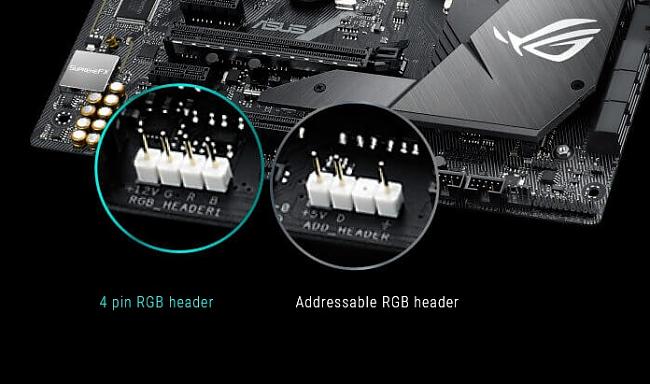
You can’t just plug anything into these headers, as they both have different voltages. Plugging the incorrect component into the header risks short-circuiting your motherboard and damaging your hardware. What’s more, you can only control components with the corresponding RGB LEDs, as a 3-pin header isn’t compatible with hardware that utilises a 4-pin header.
My Motherboard Has None of These – What Do I Do?
If your motherboard doesn’t feature an RGB or ARGB header, you can use an RGB controller. These controllers typically require a USB header on your motherboard and a SATA power connector.

Kolink Inspire L2 4-Pin 12V RGB Controller – SATA
CA-05W-KK
£1.99 GBP £ 1.90 GBP
-4.52%(incl. VAT)
FREE SHIPPING
in stock
ADD TO BASKETWith a controller, you can connect multiple devices into one RGB hub and control each of these components simultaneously. An RGB controller often has its own software included and won’t use your motherboard’s corresponding control software. However, similar to the 4-pin and 3-pin headers, you need to make sure your hardware is compatible, especially if you are looking to synchronise your entire set-up through one piece of software.

What Software Do I Need to Control My RGB Lighting?
What software you need all depends on your hardware, with both motherboard and peripheral manufacturers creating their own dedicated control hubs. This is why we recommend you refer back to any official manufacturer information, as this will detail what software you need to instal.
In the meantime, we’ve broken down some step-by-step instructions on how to control your RGB lighting. In our examples, we’ll be using:
- ASUS Aura Sync
- Corsair iCUE
The steps are very similar, so this is a good base to use if you’re struggling to find out how you customise your RGB lighting.
ASUS Aura Sync
To use ASUS Aura Sync, you’ll first need to download ASUS Armoury Crate from the ASUS website. Once you have downloaded this, open the software. You should see a dashboard similar to the one shown in the image below, displaying your compatible hardware, such as motherboards, GPUs, and more. As you can see, I have an ASUS ROG Strix B550-A motherboard.

Click on the ‘Aura Sync’ tab on the right-hand side menu. Here you see what customisable devices you have connected. You can choose to sync the lighting effect across all your devices or customise specific components. I like to have everything synchronised for a more unified look.

To begin customising your RGB, click on ‘Aura Effects’. This will provide you with a breakdown of all the effects, including basic presets and more advanced options, along with a toggle to turn on/off in-game lighting effects.
Select the effect you want from the list, and on the left-hand side, you’ll be able to customise the colour and optional features like the gradient, direction, and speed.

As you can see, I have my RGB set to a ‘Static’ effect (all the flashy RGB makes my eyes hurt, okay?), and this is set to a lovely purple colour to match the aesthetic I’m going for. I also have in-game lighting effects turned off because I don’t want the colour or effect to change based on what game I’m playing.
If you aren’t happy with your current effect and colour, selecting ‘Reset to Default’ will restore the RGB to its factory settings. To turn off all the RGB, you’ll need to select the ‘Dark (Off)’ effect.
Corsair iCUE
Head over to Corsair and download their iCUE software. Follow the on-screen steps to instal the software. Once successfully downloaded, open iCUE. You’ll be greeted by a dashboard that will look similar to the one shown in our screenshot below.

This is the home page. Here, you should see a breakdown of the compatible hardware you have installed, such as RAM or fans, or connected peripherals. In this instance, I’m using a set of Corsair Vengeance RGB RAM.
To configure the RGB, you want to select ‘Lighting Effects’. On the right-hand side menu under ‘Lighting Layers’, click the plus icon. You’ll be presented with a menu of all the various lighting effects. Under Presets, you can find options such as Rain, Colour Warp, and Rainbow. Under the Custom tab, there are options like Static Colour, Ripple, and Wave.
Click on the effect you want. I’m choosing ‘Colour Pulse’, and since I’m customising a RAM kit, I can choose to display this effect on one of the RAM modules or both of them.

As I’ve selected ‘Colour Pulse’, the colours are automatically set as random and can’t be configured. However, this isn’t the same for every lighting effect. For example, when I swap over to ‘Marquee’, I can select my desired colour from the wheel.

This effect is automatically saved as a new profile, which, as standard, will be called something like ‘Colour Pulse 1’, but you can rename the profile to suit your needs.
If you want to remove that lighting effect and profile, click on the three dots next to the profile under the ‘Lighting Layers’ tab and select ‘Delete’. This will remove the profile and turn off the RGB. To turn it back on, you’ll need to restart the process above.
Corsair iCUE has an option that enables you to apply your effect and colour across all your compatible devices. You can do this by selecting ‘Lighting Link’.
Other Types of RGB Control Software
While we’ve gone into detail for both Corsair iCUE and ASUS Aura Sync, some other popular RGB control software includes:
- MSI Mystic Light
- Gigabyte RGB Fusion
- Razer Synapse
- ASRock Polychrome Sync
- Otac FireStorm
- Glorious Core
- Lian Li L-Connect 3
- Ducky Hub
- OpenRGB
- SignalRGB



How to Change PC RGB Lighting: Beginner’s Tutorial for Asus, MSI, Gigabyte & More!
This article goes into using ASUS Aura Sync and Corsair iCUE, but obviously, there are plenty more out there to use! Over on the Overclockers UK YouTube, we have a beginner’s guide to changing RGB lighting on your components, from case lighting to GPUs. This helpful video covered integrated buttons on your PC case, motherboard software, some troubleshooting tips, and more. Be sure to check it out!
Add A Splash of Colour
Looking to illuminate your set-up in vibrant colour?
You can find everything you need at Overclockers UK with an extensive range of RGB LED strips, fans, controllers, and even RGB peripherals. All of which you can browse by clicking the relevant buttons below.

Razer Basilisk V3 Pro 35K Wireless Optical Gaming Mouse – Black
GAM-RZR-03671
£159.95 GBP
(incl. VAT)
FREE SHIPPING
in stock
ADD TO BASKET
Phanteks Digital RGB LED Starter Kit
CA-07U-PT
£36.95 GBP £ 16.99 GBP
-54.02%(incl. VAT)
FREE SHIPPING
in stock
ADD TO BASKET
Kolink Umbra Radiant ARGB LED Strip – 1M
CA-07F-KK
£4.99 GBP £ 3.47 GBP
-30.46%(incl. VAT)
FREE SHIPPING
in stock
ADD TO BASKETYour Complete Guide to RGB Software FAQ
What is RGB lighting?
RGB lighting uses the three colours it’s named for – Red, Green, and Blue – at various intensities to create over 16 million other colours. These can be displayed by your PC or connected peripherals, such as a mouse and keyboard.
What is the difference between RGB and ARGB/DRGB?
Standard RGB is an older format, where the LEDs cannot typically be controlled individually. As such, the lighting is usually limited to displaying a single colour. Conversely, ARGB/DRGB is the newer standard and allows you to tweak each LED’s colour, brightness, and more for a more varied display.
How do I control RGB lighting on my PC?
RGB lighting can be controlled using the manufacturer’s compatible software or via a dedicated RGB controller. Programs you may need to use include ASUS Aura Sync, Corsair iCUE, Razer Synapse, and more.
What is the difference between 3-pin and 4-pin RGB headers?
A 12V 4-pin header is used for RGB lighting and possesses no data stream, which means all LEDs are bound to one circuit and can only display a single fixed colour. Meanwhile, a 5V 3-pin header is used for ARGB /DRGB lighting and includes a data stream that allows LEDs to be controlled individually across the full RGB spectrum.
Can I use a 3-pin ARGB device with a 4-pin RGB header?
You cannot use a 3-pin ARGB device on a 4-pin RGB header. This is because they use different voltages, and connecting them incorrectly can risk short-circuiting or damaging your hardware.
Can I use RGB lighting if my motherboard doesn’t have an RGB header?
You can use RGB lighting if your motherboard doesn’t have an RGB header by using a dedicated controller. These devices typically require a USB header on the motherboard as well as a SATA power connector.
How do I find out which RGB lighting effects I can use?
The RGB lighting effects available depend on what software and hardware you’re using. Check the manufacturer’s leaflet or the online product listing for an accurate breakdown of what to expect.
Learn More About RGB Lighting


Does Your PC Have RGB?
Do you use RGB in your PC? What’s your favourite lighting effect? Let us know in the comments.
- 12 min read


Ruth Rowley
Author
Ruth has been with Overclockers UK for over four years and has gone on to write about everything ranging from in-depth hardware guides to monthly game releases.
Outside of writing blog posts, she can be found wrapped in a blanket with her black cat, engrossed in a book or playing life-simulation games such as The Sims, Stardew Valley, and Animal Crossing.
Read More >>