
Is your PC struggling with slow poor performance? Have you tried clearing your RAM cache?

We’ve rounded up everything you need to know about RAM cache, from what it is, and why you should clear it, to a handy step-by-step guide showcasing how to clear your cache.

What is RAM Cache?
RAM cache is the part of your memory that stores any frequently accessed data for faster retrieval rates. As more information is stored in the cache, the less time it takes for your CPU to access the data it needs to perform a task.
Some hardware can have multiple ‘levels’ of cache split into L1, L2, and L3, with each level expanding on the capabilities of its predecessor and moving closer towards the processor to deliver notably faster speeds.
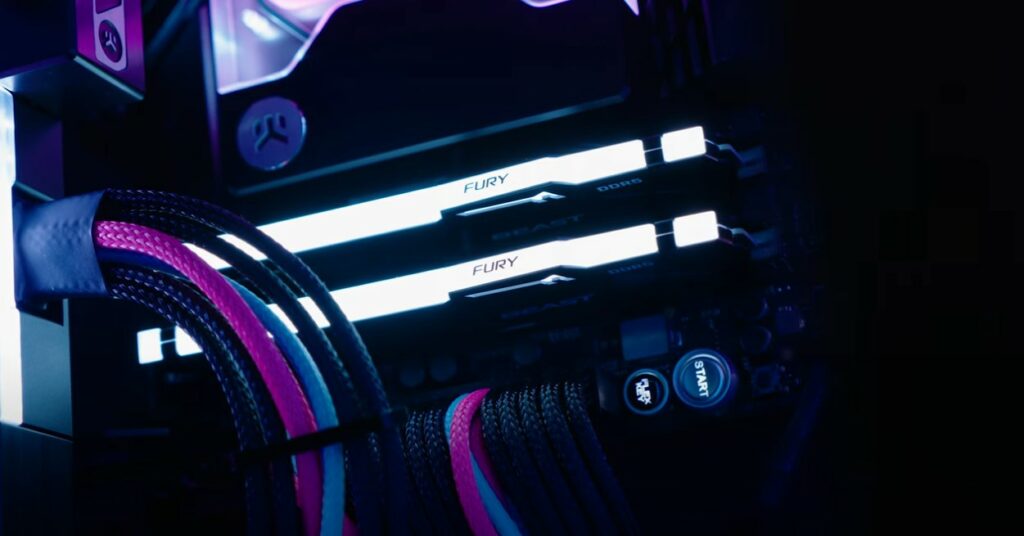
In short, the cache acts as almost a temporary waiting area or buffer, and it’s located in between the processor and main RAM modules. Since this is temporary, any information that’s stored in the cache isn’t permanent.
Why Should You Clear Your RAM Cache?
Clearing out your RAM cache can notably help to improve your PC’s performance.
When your main RAM is overloaded, your computer begins to suffer from slower loading times, error messages, and even program crashes. Clearing the cache, however, frees up extra space within the cache, helping to facilitate smoother performance once again.

Clearing the cache isn’t dangerous, in fact, it’s something that you should try to do regularly. It won’t have a negative impact on your PC, but instead, can help to improve efficiency and your overall experience whilst gaming, streaming, or creating.
How to Clear RAM
There are a few ways that you can clear your RAM cache. This includes:
- Restart Your PC
- Third-party software
Restart Your PC
Since the cache serves as a temporary non-volatile waiting space, restarting your PC will delete all recent data, almost acting as a memory refresh.
Via RAMMap
Alternatively, you can opt to install a third-party software, such as RAMMap, designed to help clear your cache and optimise your PC.
RAMMap is a free to use tool that’s available from Microsoft, which intelligently analyses your memory usage and clears the cache. Here’s what you need to do to use RAMMap.
- Download RAMMap from Microsoft here (external link).
- Extract the ZIP file in your Downloads folder.
- Open the RAMMap folder, right-click RAMMap.exe, and select ‘Run as Administrator’.
- Agree to the Terms and Conditions.
- On the menu bar at the top of the pop-up, select ‘Empty’
- Click ‘Empty Standby List’
If your PC is still struggling with slow poor performance, even after you’ve cleared your RAM cache, check out our dedicated blog posts for even more top tips to help boost your PC speeds.



Upgrade Your RAM
Have you tried everything to no avail? If your PC is still struggling with poor, slow and sluggish performance, it might simply be time for a RAM upgrade. Thankfully, at Overclockers UK, we stock an extensive range of memory, available in a multitude of capacities and standards, including DDR4 and DDR5.
We’ve got two picks showcased below, but you can also click the button to shop the entire collection.
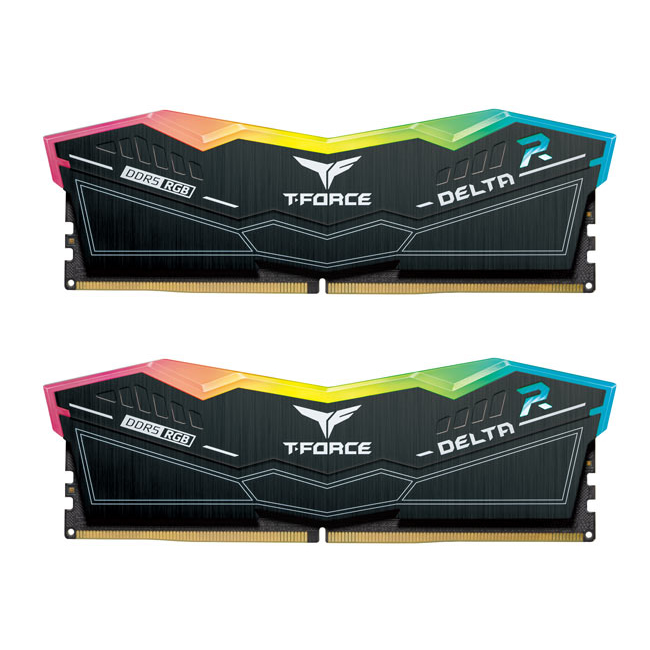
TeamGroup Delta RGB 32GB (2X16GB) DDR5 PC5-51200C40 6400MHz Dual Channel Ki
MY-0AV-TG
£399.95
(incl. VAT)
FREE SHIPPING
in stock
ADD TO BASKET
Corsair Vengeance XMP RGB 32GB (2X16GB) DDR5 PC5-51200C36 6400MHz Dual Channel Kit – Black
MEM-CRS-04230
£419.99 £ 398.99
-5%(incl. VAT)
FREE SHIPPING
Pre order
ADD TO BASKETLearn More About Your RAM


Did You Clear Your RAM Cache?
Did you clear your RAM cache? Share your top tips on how you achieved this in the comments below.
- 3 min read

Ruth Rowley
Author
Ruth has been with Overclockers UK for over four years and has gone on to write about everything ranging from in-depth hardware guides to monthly game releases.
Outside of writing blog posts, she can be found wrapped in a blanket with her black cat, engrossed in a book or playing life-simulation games such as The Sims, Stardew Valley, and Animal Crossing.
Read More >>